Building a Search
Every search starts by choosing what you're looking for, then adding one or more conditions that narrow it down.
Step 1 — Pick the table to search
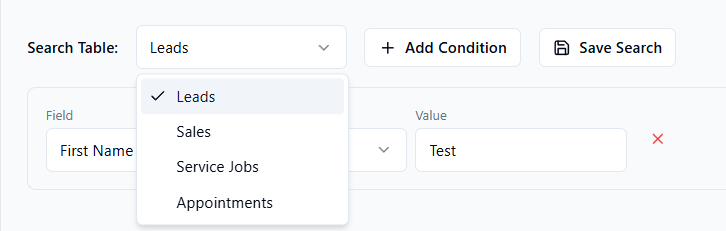
At the top of the Search Builder, use the Search Table dropdown to pick what you're searching:
- Leads
- Sales
- Service Jobs
- Appointments
The available fields change based on what you pick.
Step 2 — Add a condition
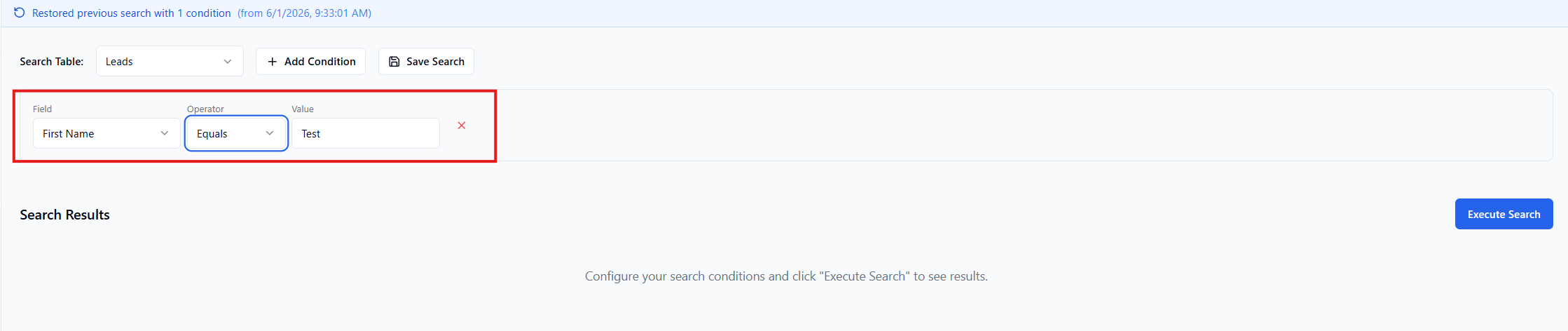
Click Add Condition. A new row appears with three controls:
- Field — the attribute you want to filter on (e.g. Status, Sale Amount, Created At)
- Operator — how to compare it (e.g. Equals, Contains, Between)
- Value — what to compare against
Step 3 — Add more conditions and combine them
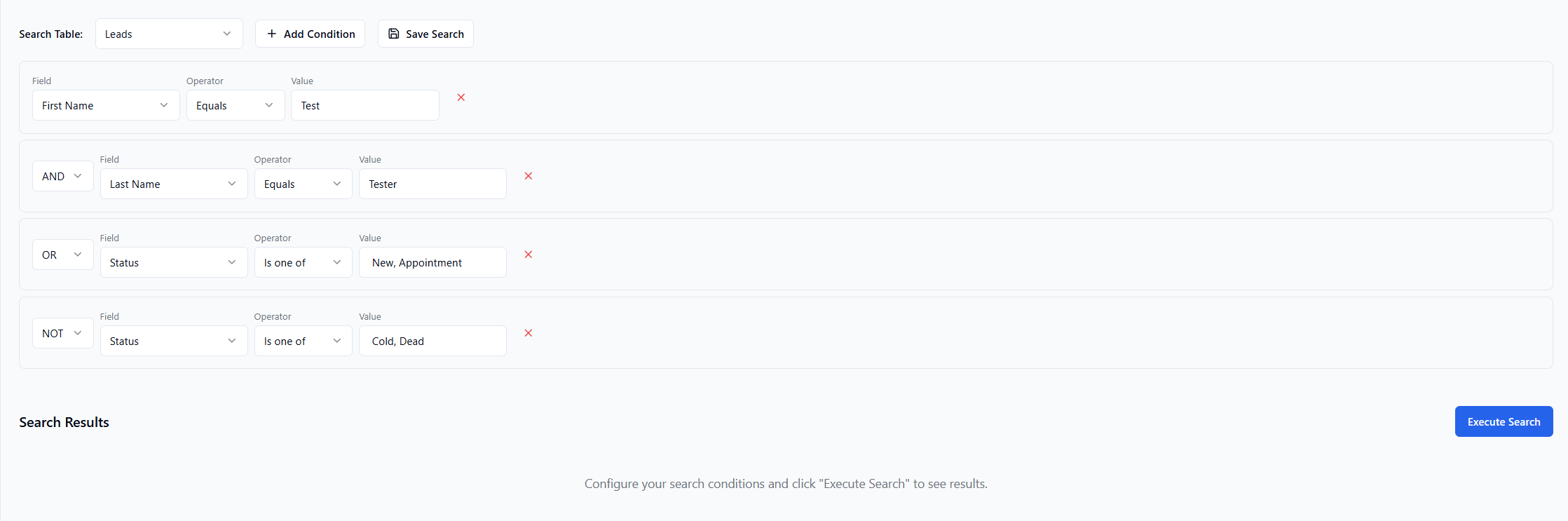
When you add a second condition, a logical operator appears in front of it:
- AND — both conditions must be true (narrower results)
- OR — either condition can be true (broader results)
- NOT — exclude records that match this condition
Step 4 — Run the search
Click Execute Search. Results appear in the table. The header reads "Showing X of Y results for [TABLE]".
Step 5 — Remove or adjust conditions
Click the X at the end of any row to remove that condition
Change any dropdown or value at any time and click Execute Search again to refresh results