Getting Started with Advanced Search
Advanced Search lets you build precise, multi-condition queries across the CRM and reuse them whenever you need them. Instead of scrolling through long lists or relying on one-off filters, you can ask questions like "show me all commercial sales over 10 kW that closed last quarter and still need an MPU" — and save that question to run again later.
When to use it
- Pulling targeted lists for outreach (e.g. all leads from a specific source in a date range)
- Reporting and exporting subsets of records
- Tracking work queues that don't fit a built-in filter (e.g. service jobs on hold for a specific technician)
- Finding records when you only remember partial details (street name, phone fragment, etc.)
Opening Advanced Search
Click Advanced Search in the main navigation menu. You'll land on the /search page.

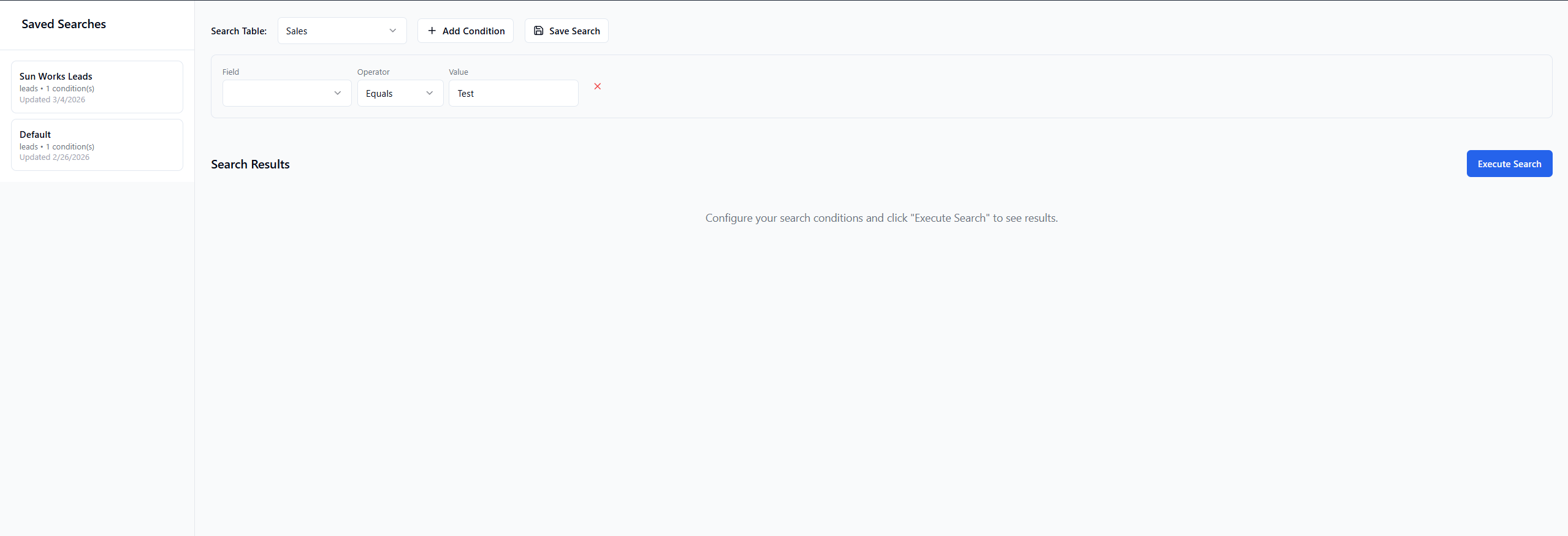
The page has three areas:
- Saved Searches (left sidebar) — your previously saved queries
- Search Builder (center) — where you build the current query
- Results Table (right/below builder) — the records returned by your search