Working with Results
Once you execute a search, results appear in a table below the builder.
Reading the header
The results header tells you "Showing X of Y results for [TABLE]" — X is how many are currently loaded and Y is the total that matched.

Sorting
Click any column header to sort by that column. Click again to flip ascending/descending. Sorting applies to the entire result set, not just the rows currently loaded.
Showing and hiding columns
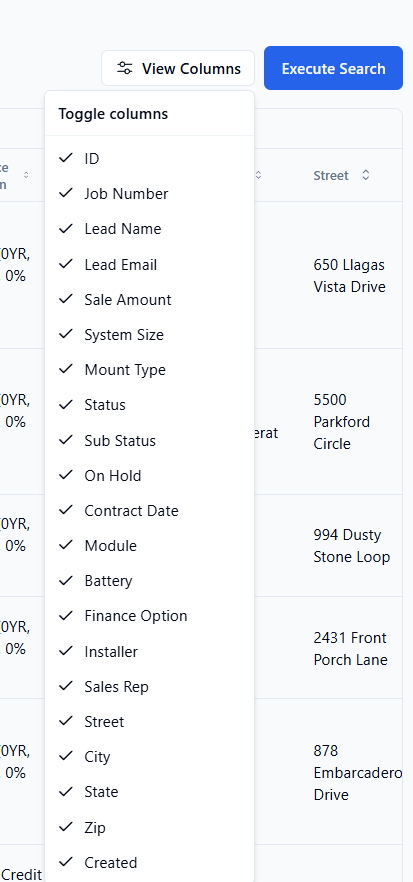
Click the View Columns (gear) icon above the results table to open the column visibility menu. Toggle any column on or off to focus on what matters.
Loading more results
By default, 50 rows load at a time. When more results exist, a Load More Results button appears at the bottom of the table — click it to append the next page.
Opening a record
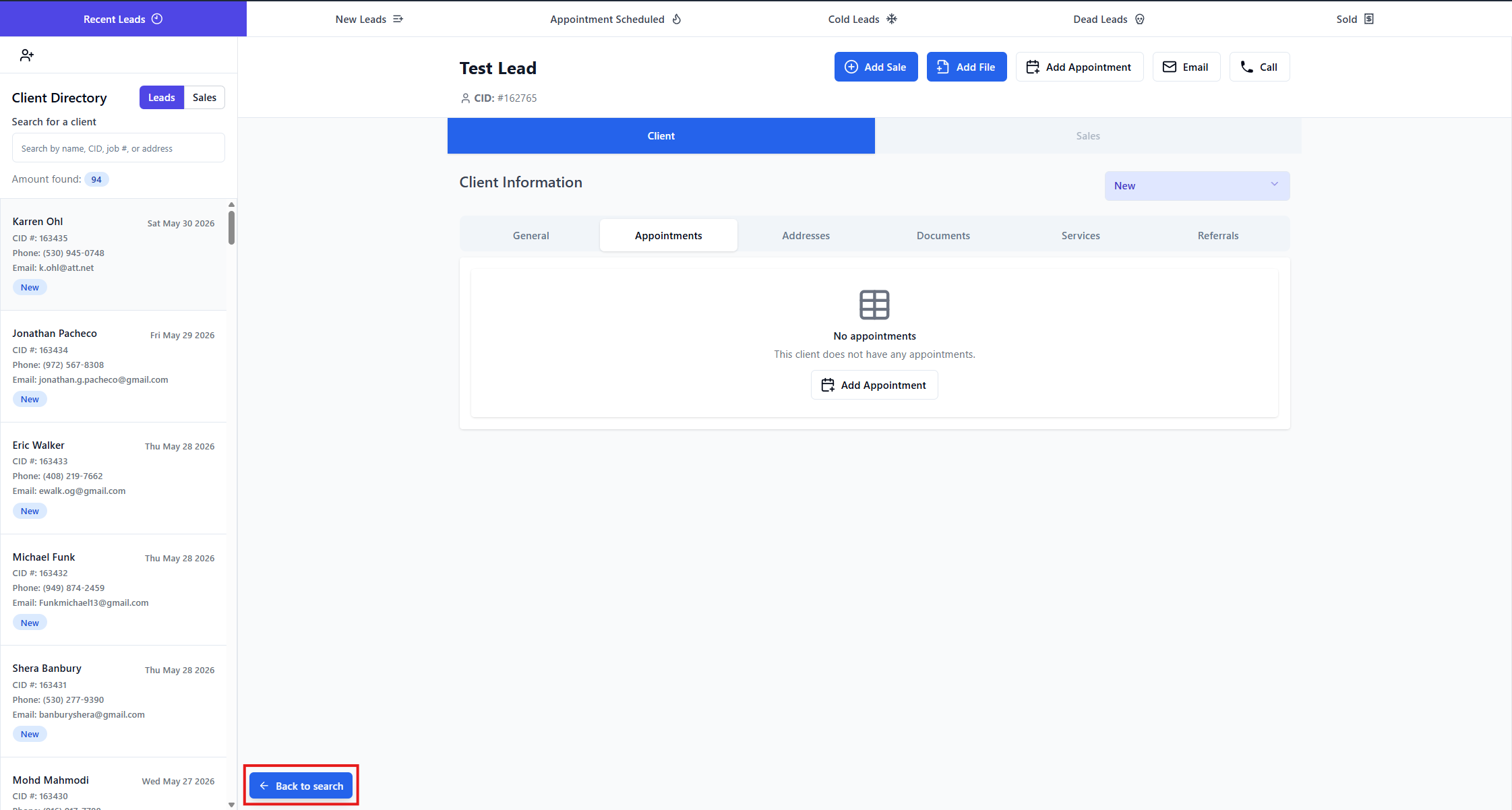
Click any row to open the full record. A Back to Search pill appears at the bottom-left of that record — click it to return to your results with the same search re-executed.
Formatting
The table cleans up common values automatically:
Phone numbers — (555) 123-4567
Currency — $25,000.00
System sizes — 5.4 kW
Yes/No for true/false fields
Dates formatted to your locale