Saving and Reusing Searches
If you'll run the same query more than once, save it.
Saving a search
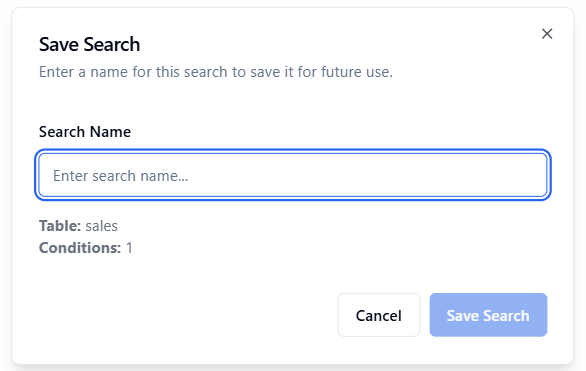
Build and validate your conditions (the Save Search button is disabled until the builder has valid conditions)
Click Save Search
In the dialog, enter a descriptive Search Name (e.g. "Hot Leads — Solar — This Quarter")
Confirm the target table and condition count shown in the dialog summary
Click Save Search to confirm
A toast notification confirms success and the search appears in the left sidebar.
Loading a saved search
Click any item in the Saved Searches sidebar. The builder fills in with that search's conditions and the search runs automatically. A banner at the top of the results reads "Restored previous search..." with the original
execution time.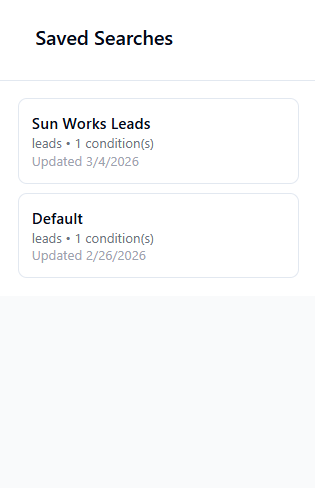
Deleting a saved search
Hover over the search in the sidebar
Click the X that appears in the top-right of the card
Confirm in the dialog
What's stored
Each saved search keeps its name, target table, conditions, and the date it was created/updated. Saved searches are per-user — only you see your own saved searches.